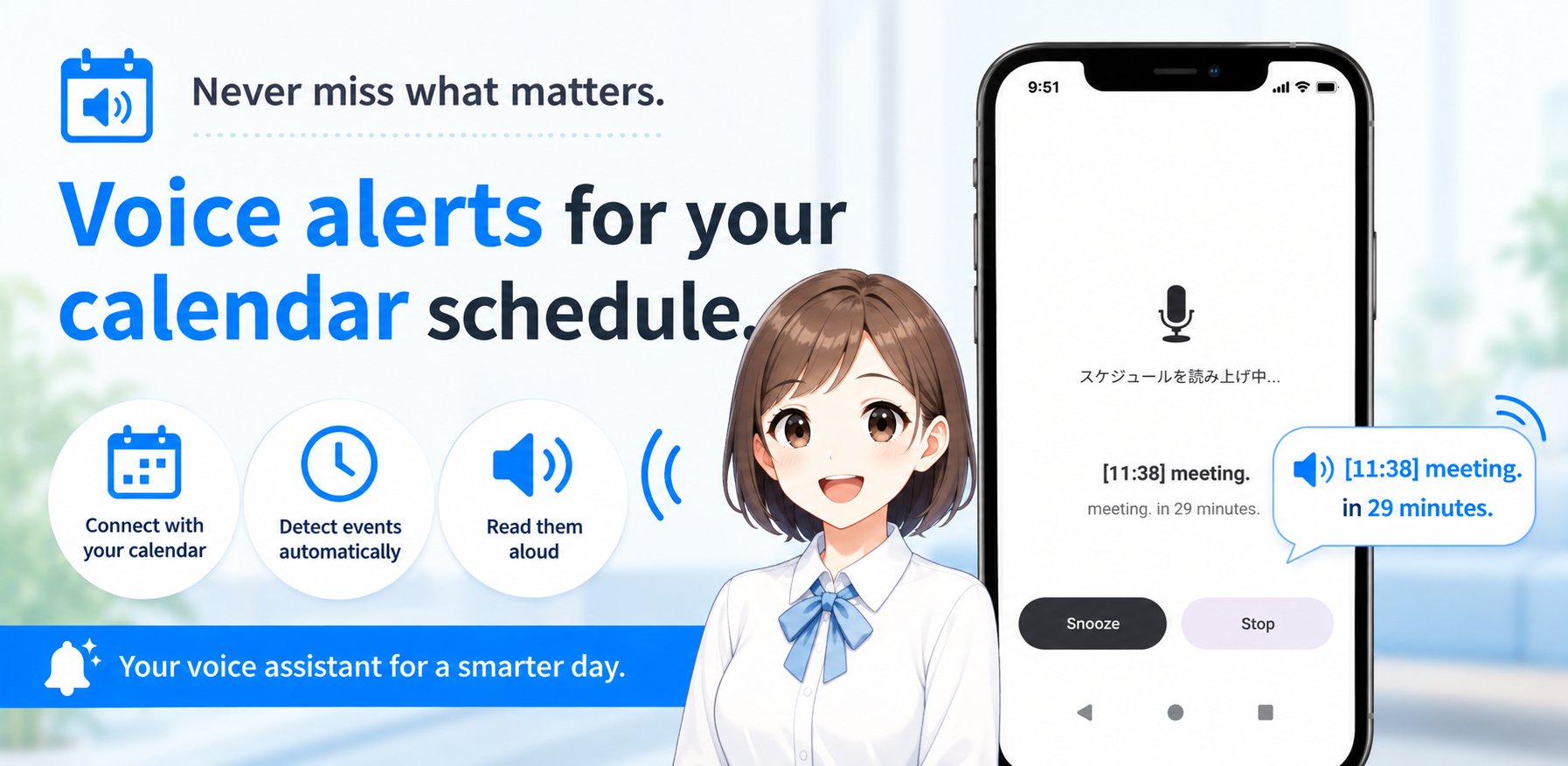
What is YomiCal?
It reads your Google Calendar events aloud with TTS, at the volume you set.
That's all it does. A simple app for Android.
Features
At each event's notification time, YomiCal reads the event aloud with TTS at the volume you choose.
Instead of just a beep, it tells you what the event is, which helps you avoid problems like these.
Sound familiar?
- The notification sound is too short or too quiet to notice.
- You have to add a separate event just to be reminded when something ends, and sometimes you forget.
- Your phone is on vibrate, so you miss the notification.
- Your phone switched to silent mode without you noticing.
- The event is in your notification shade, but you never see it.
- You set an alarm for an event, but can't remember what it was for.
- You stop the alarm on reflex and forget you had somewhere to be.
- You forget about a trip or business trip that lasts several days.
YomiCal speaks the event itself at a fixed volume, so you don't miss it.
Settings
Settings are organized into five groups. Tap a group's heading to open or close it; when closed, a summary of the current settings is shown under the heading. Changes are saved as soon as you make them.
Screenshots show the Japanese UI.
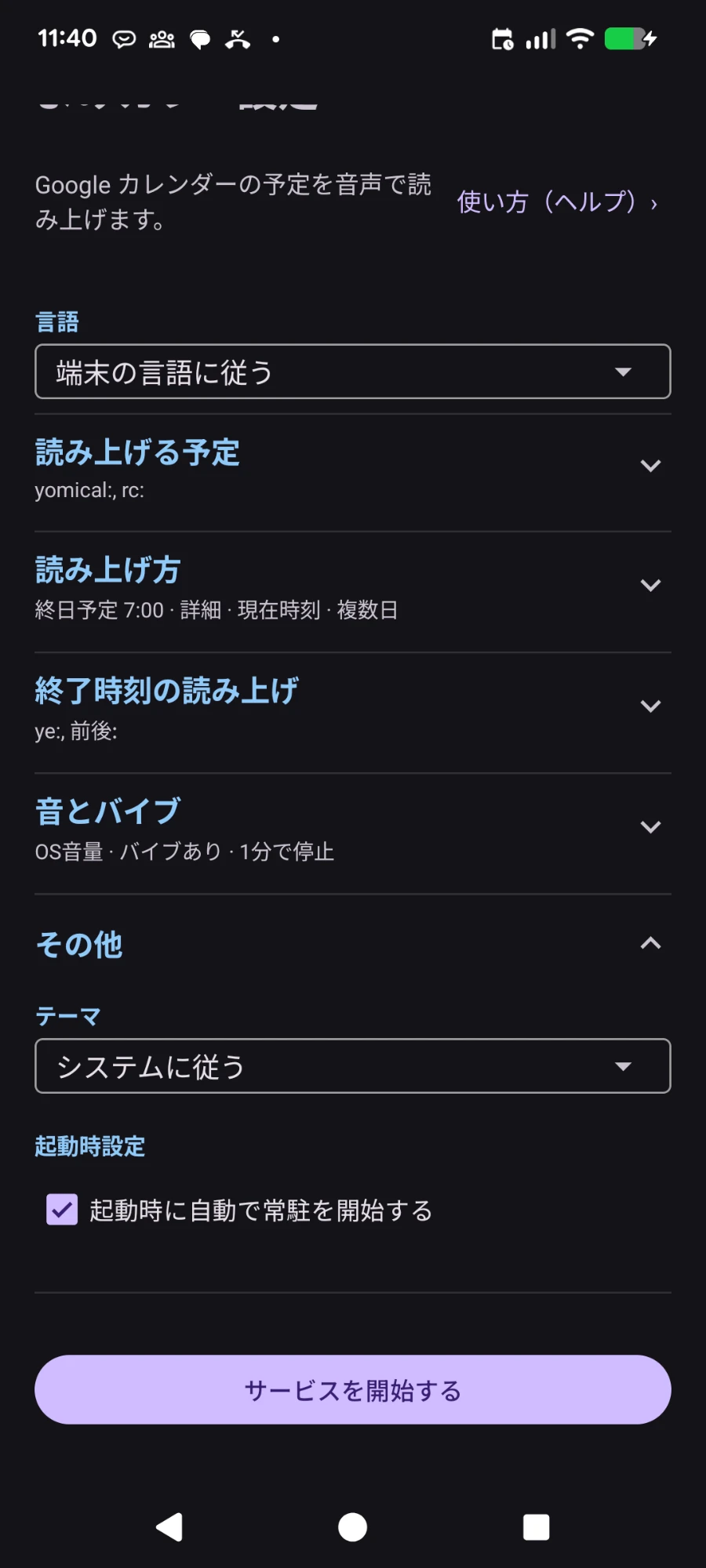
Language
Choose the language for the screen and the read-out. Available in Japanese, English, Korean, Chinese (Simplified), Spanish, French, German, Portuguese and Italian.
- Follow device language: uses your phone's language. If it isn't supported, English is used.
- If your phone doesn't have a voice for the selected language, events are read in English.
- If an event title is in another language (for example, a Japanese title with English selected), that part is read with a voice for that language.
Other
- Theme: choose Follow system, Light or Dark.
- Start monitoring automatically on device boot: YomiCal starts running again after your phone restarts.
Start service
The button at the bottom starts the read-out service and checks the required permissions. Settings are already saved when you change them, so you don't need this button to save.
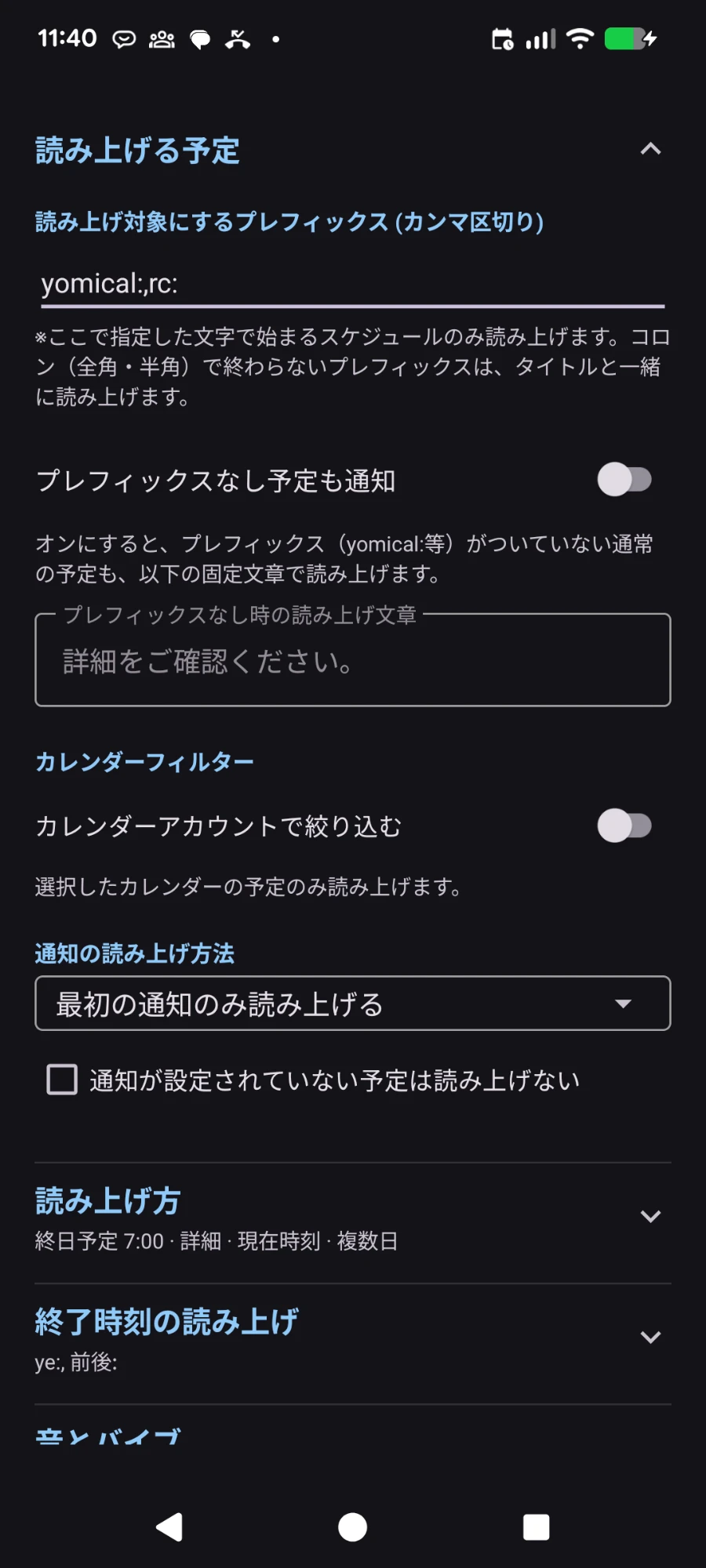
Reading prefixes (comma separated)
Only events whose titles start with one of these prefixes are read aloud. Separate multiple prefixes with commas (,).
* Whether a prefix ends with a colon (: or full-width :) decides whether the prefix itself is read aloud.
- Ends with a colon (e.g.
yomical:): the prefix is not spoken. "yomical:Dentist" → "Dentist" - Doesn't end with a colon (e.g.
Meeting): the prefix is spoken as part of the title. "Meeting weekly" → "Meeting weekly"
yomical:,rc:, then add an event titled "yomical:Dentist" and it will be read aloud.Notify events without prefix
When on, regular events without a prefix are also announced using a text you set. The event itself isn't read out, only that you have an event.
If the text is left empty, the default text ("Please check your schedule.") is used.
Calendar filter
Turn on "Filter by calendar account" to read aloud only events from the accounts you select. You can exclude a work account, or set up an account just for read-outs.
Reminder reading mode
Choose what happens when an event has several reminders (for example, 30 and 10 minutes before).
- Read first reminder only: reads once, at the earliest reminder.
- Read all reminders separately: reads at each reminder time.
Skip events with no reminder set
When checked, events without any reminder are not read aloud (all-day events are not affected).
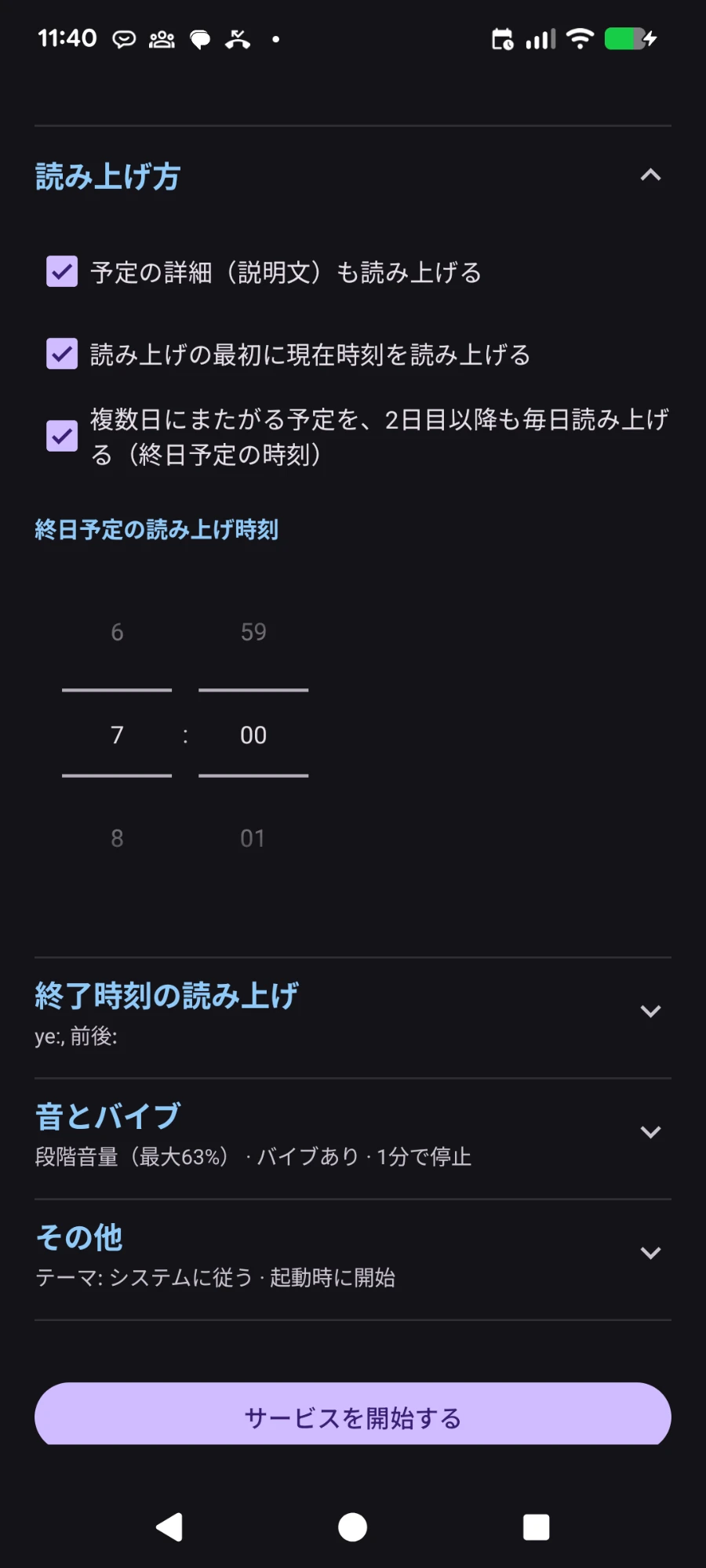
Read event description aloud
Reads the event's description after the title.
Read the current time first
Starts each read-out with the current time. Each repeat uses the time at that moment.
Read multi-day events every day
Events that last several days, such as trips, are also read out on the following days, at the all-day event time, as an all-day event. The last day is included if the event is still going on at that time.
Read-aloud time for all-day events
All-day events have no start time, so choose when they should be read aloud. The following days of multi-day events are also read at this time.
Default: 7:00
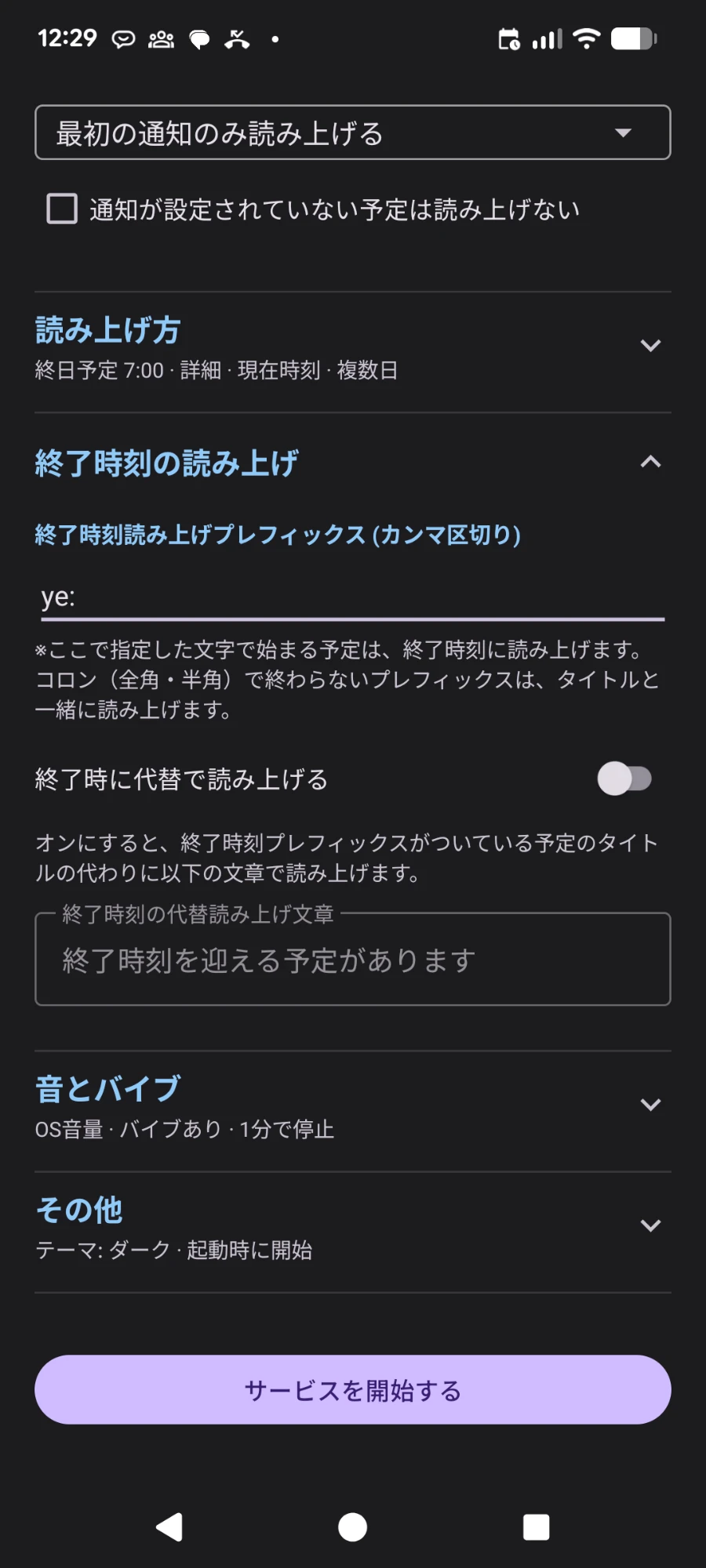
End-time reading
Events whose titles start with one of the end-time reading prefixes (comma separated) are read aloud at their end time, so you don't need to add a separate event to mark the end.
If you set the same value as a reading prefix, the event is read aloud at both its start and end times. Colons work the same way as for reading prefixes.
ye: and add "ye:Meeting" to be alerted when the meeting ends.Read substitute text at end time: when on, events are announced with your text instead of their title.
If the text is left empty, the default text ("An event is ending soon") is used.
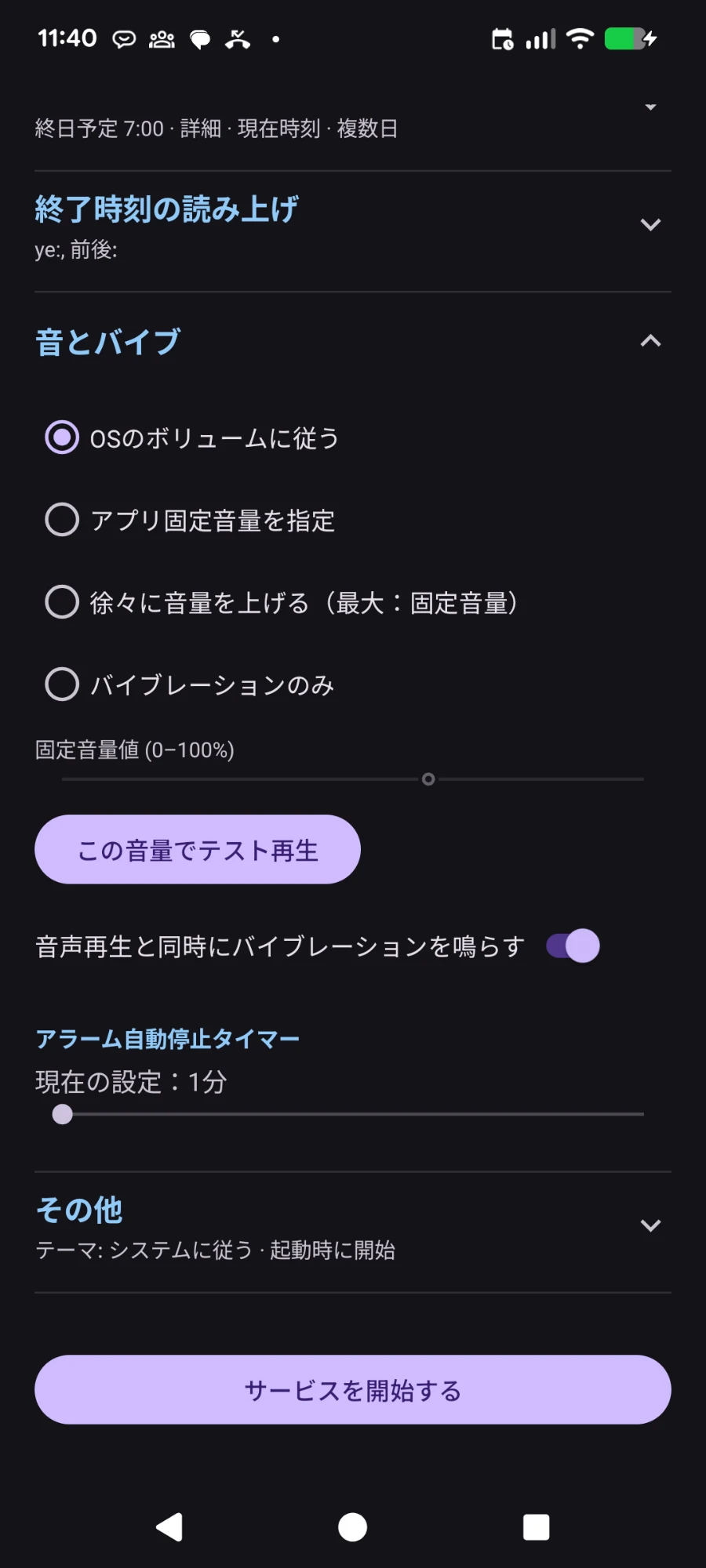
Volume
Choose how the read-out volume is decided.
- Follow OS volume: uses your phone's current volume.
- Use fixed app volume: reads at the volume set with the slider (0–100%), regardless of the phone's volume.
- Gradually increase volume (max: fixed volume): starts at 3/5 of the slider volume and goes up to 4/5 and 5/5 every 5 seconds.
- Vibration only: no sound, just vibration.
"Test volume" plays a sample repeatedly, just like a real read-out, so you can check how it sounds. Any alarm volume changed during a read-out is restored afterwards.
Vibrate while speaking
Vibrates the phone during the read-out.
Alarm auto-stop timer
Set how long the alert keeps going before it stops automatically (1–15 minutes), so it won't keep running if you miss it.
Default: 5 minutes
How it works
Read-outs
- For security, only events with the prefixes you set are read aloud.
- With the calendar filter, you can also limit read-outs to events from the accounts you select.
- When several events fall in the same time slot, they are read in order of start time.
- The read-out repeats until the auto-stop timer runs out.
When reading events without a prefix
- If several events without a prefix fall in the same time slot, YomiCal reads out how many events there are.
Notification shade
- Once the service is running, stop it from the notification. This also applies when it started automatically on boot.
- The notification shows the next event to be read. If you don't need it, you can skip it.
- You can snooze from the notification shown when a read-out starts. It resumes after 5 minutes, together with any events whose time came during the snooze.
- You can view the text being read on screen.
- You can check past read-outs after their time has passed.
Read-out screen
- A screen appears like an alarm, with Snooze and Stop buttons.
- The screen stays after the read-out ends, so you can see that an event was announced.
- The home screen icon shows today's date.
With other apps
- If a clock alarm or a phone call happens at the same time, YomiCal pauses and lets it go first, then resumes. While paused, the read-out screen says so.
- If you start playing music or similar during a read-out, it is treated as a snooze and resumes after 5 minutes.
- If text-to-speech isn't available, YomiCal alerts you with the alarm sound instead.
- In any case, it always stops within the auto-stop time plus 2 minutes.
Free trial and purchase
Free trial and purchase
- You can try every feature free for 16 days from the day you first open the app.
- Below “Start service” on the settings screen, the app shows how many trial days are left and a “Purchase” button.
- You are notified 3 days before, 1 day before, and when the trial ends.
- After the trial ends, at event time the app only says “You have an event. Purchase the app to hear its details.” Event titles and details are not read aloud or shown on screen or in notifications. Snooze and stop keep working.
- A one-time purchase keeps event details read aloud for good. There is no subscription. The price is shown on the Purchase button.
- Purchases are handled by Google Play. After switching phones or reinstalling, your purchase is restored automatically when you open the settings screen with the same Google account.